Latest Post

Exclusive: Google to Rebrand Blogger & Picasa into Google +

Written By Unknown on Wednesday, 6 July 2011 | 02:17

google-blogger-picasa
Mashable just learned that Google is intending to retire two of its popular and biggest branded products and incorporate them into Google branded services in next six weeks.

The move is part of a larger effort to unify its brand for the public launch of Google+, the search giant’s social initiative.

According to two sources familiar with the matter, Google intends to rename Picasa “Google Photos” and Blogger will become “Google Blogs.” Several other Google brands are likely to be affected, though our sources made it clear that YouTube would not be rebranded.
According to their source, the move isn't without precedent; Google acquired Jotspot in 2006 and rebranded it as Google Sites in 2008 in 2007 and they also acquired VOIP platform GrandCentral and relaunched it as Google Voice in 2009.

Picasa a very popular photo sharing site was acquired in 2004 and Blogger (co-founded by Evan Williams of Twitter) was acquire in 2003 and is one of the top most visited websites in the world.

As it now seems this drastic move will sadden some existing bloggers, but it gives Google the ability to completely integrate both services into Google+

Gmail Hacks: Tips and Tricks You May Not Know

Written By Unknown on Tuesday, 5 July 2011 | 11:41

Google Mail is without doubt one of the most popular online email services. What makes it so interesting is not only the functionality that it provides out of the box but also its extensibility. The following article contains five Gmail tips and tricks that you may not know about:

Trick 1: Select multiple messages


Tired of clicking individual messages but don't want to select all of them? Select the first message in the set, hold the shift key, then select the last message of the set.

Trick 2: Bypass the blank message prompt


Do you send messages where the subject is the entire message? Then you're familiar with the prompt asking you if you're sure you want to send the message without text in the body. To bypass the prompt, type "EOM" or "(EOM)" at the end of the subject to tell Gmail that it's the end of message.

Trick 3: Use address aliases

Gmail doesn't offer traditional e-mail aliases, but you can add a "+" to the end of your username to create one. For example, messages sent to username+alias@gmail.com is sent to username@gmail.com. This can be useful for setting up filters or figuring out who's selling your e-mail address to spammers.

Trick 4: Dots or no dots, it's your username

Did you know that Gmail doesn't recognize dots as characters within a username? That means that if your e-mail address is username@gmail.com, then user.name@gmail.com and u.s.e.r.n.a.m.e@gmail.com are also yours.

Trick 5: Send & Archive at once


If you send messages and immediately archive the conversation, you can save yourself a step by adding a Send & Archive button. Go to the Labs section of your Mail Settings and enable the Send & Archive button.

So, how many of these tips and tricks did you already know?

AntiSec Targets Apple Survey Server, Releases Post Passwords

Written By Unknown on Monday, 4 July 2011 | 12:46

apple-logo1.jpg
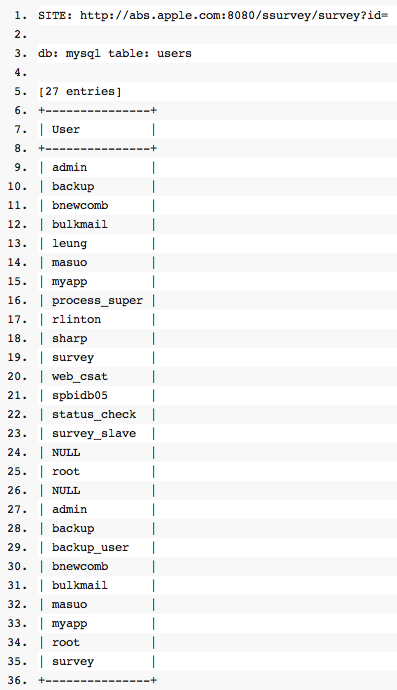
Hackers have posted a document that allegedly has user names and passwords for an Apple server. The find, posted via the AntiSec hacking campaign, appears to be a warning that Apple “could be a target too.”

The bigger picture here is that Apple will become an increasing target for these hacker groups if the company provides the right trigger. Apple could represent the Holy Grail for malicious hackers given its stash of iTunes customer data. If Sony, AT&T and the CIA can bring hackers headlines just imagine what Apple could do.

According to the Wall Street Journal, AntiSec includes hackers from Anonymous and the now-decommissioned LulzSec. 9to5 Mac considers the document posted by AntiSec to be relatively benign.

That take looks to be roughly correct, but there’s a warning embedded here. Hackers apparently are too “busy elsewhere” to mess with Apple, but that doesn’t mean the company is bulletproof. One trigger—something that may annoy hackers—could set off a larger attack.

Apple hasn’t commented yet and probably won’t. Today Anti-Sec claims a technical support server. It’s not a big deal yet. The big question is whether Apple’s more valuable servers—iTunes and iCloud—will become targets.

apple-flaw.png

Hackers Compromises Fox News Twitter Account, Declares Obama Dead

A Twitter account maintained by Fox News has been hacked to post fake "Obama assassinated" stories.

The @foxnewspolitics account was seized to post a succession of bogus updates (example below) on the false story that Obama was shot and killed while supposedly campaigning at a Ross' restaurant in Iowa.
fox_twitter_hack
The obviously compromised account has more than 33,000 followers. Such hacks are often an attempt to trick surfers into visiting links for more information that actually land on sites running fake anti-virus scans. No malware payload or links have yet appeared in this case, though that could easily change.

It is unclear who pulled off the attack but it bears the hallmarks of an attack carried out for bragging rights and using password-guessing, possibly by a group of LulzSec wannabes. The timing of the hack early on Monday morning (US time) coincides with US Independence Day.

Clipboard Hacking: How it's done and how to Prevent It

Written By Unknown on Saturday, 2 July 2011 | 06:50

ie-flawThis is one of the most popular things we do on the internet with our keyboard. "Ctrl+C". We copy data (i.e. email address, passwords, ssn, credit cards etc.) here and there and paste to wherever we want to reuse it. But do you realize that the data you copied are stored in what is called a clipboard temporarily and is accessible to anyone and can be stolen when you visit web sites using a combination of Javascripts and ASP (or PHP, or CGI) to write your data to a dabase on another server.

You might be wondering, how on earth is that possible. Its true and possible and we're going to explain how and how to prevent it from now happening. Just read on and i just hope you haven't copied a credit card number recently.

The Clipboard hack is done by the following Source Code:


Yes, with this simple script any website has the potential of stealing your sensitive information to their database.

Now the good news is this vulnerability can only be found on Internet Explorer and to avoid this clipboard hack problem IE users follow this simple steps.

Go to Internet Options -> Security
Press Custom Level
In the security settings, select disable under Allow paste operation via script.

Advise: I can't say you should stop using IE, though i don't use it but to save yourself from being a victim of this flaw don't use it. PERIOD.

How to Configure Gmail With A Desktop Mail Client

gmail-logo-stylized.pngWe love using Gmail.com for its many features, but if you want offline access and a more "desktop-like" experience, you can get your Gmail messages delivered to a desktop client, like Outlook or Apple Mail. Here's how.

Every mail client is a little bit different, so we can't show you every way to set up Gmail, but in general, it should be pretty similar. Some programs will set up Gmail automatically with just your username and your password, while others will require you to set them up manually. If you have a Google Apps account (that is, if you're using Gmail but your email is not an @gmail.com email address), you'll also have to do it manually. Here are a few examples using the most popular email clients.

Initial Setup (for All Clients)

enableimapgmail.jpgBefore you do anything, you'll need to enable IMAP in Gmail, which will let you access your accounts on the desktop. To do this, head into Gmail's Settings and go to the Forwarding and POP/IMAP tab. Scroll down to the IMAP section and enable IMAP. Then save your changes, and open up your desktop email client of choice to set it up using the following instructions.

Set Up Gmail in Microsoft Outlook

To set up Gmail in Microsoft Outlook (we'll be using Outlook 2010 for this demonstration), open up Outlook and run through the following steps:
  • Head to File > Account Settings > Account Settings. Click the New button to create a new account.
  • Click on the "Manually configure server settings" radio button at the bottom of the new account window. Then, hit Next.
  • Choose Internet Email at the next screen and hit Next.
  • Type in your name and Gmail address under "User Information. Change your Account Type from POP3 to IMAP, and add imap.gmail.com as your Incoming Mail Server. Type in smtp.gmail.com as your Outgoing Mail Server.
  • Type in your full Gmail address (i.e. whitson@gmail.com) and password under Logon Information.
  • Hit the More Settings button and go to the Advanced tab. Under Incoming Server, type 993 and set your encryption from "None" to "SSL". Under Outgoing Server, type 587 and set your encryption to TLS.
  • Head to the Outgoing Server tab of the same window and check the box that says "My outgoing server requires authentication". Hit OK, and hit Next to complete your account setup.
If all goes well, Outlook should send a test message, and let you know that your account was successfully set up! Check out the video above to see this process in action.

Set Up Gmail in Apple Mail

To add a new account in Apple Mail:
  • Head to Mail > Preferences in the menu bar and go to the Accounts tab. Hit the plus sign in the bottom left corner to add a new account.
  • Type in your Name, full Gmail address, and password and hit Continue. If you're using an @gmail.com address, you're probably done—Mail should fill in the rest of the settings for you. If you're using a Google Apps account, you'll need to do a few more things.
  • On the next window, choose IMAP as your Account Type, type in a description (something like "Gmail"), and type imap.gmail.com. Change your username to your full Gmail address and type in your password. Click Continue.
  • On the next screen, type a description, type smtp.gmail.com as your Outgoing Mail Server, and check the Use Authentication. Click Continue, and click Continue on the next screen as well. Hit Create to take the account online.
When you're done, Mail should start downloading all your messages to your inbox, and you'll be ready to read all your email right from the desktop. Check out the video above to see this process in action. Note that Mail doesn't automatically use Gmail's Sent, Spam, or Trash folders—it'll create its own, which can be annoying. To fix this, just select Gmail's Sent Mail folder, then go to Mailbox > Use This Mailbox For > Sent in the menu bar. Repeat this process for Trash and Junk, too, to make sure all your folders sync up.

Set Up Gmail in Mozilla Thunderbird

Setup in Mozilla Thunderbird is pretty much the same as in Apple Mail. To add Gmail to Thunderbird:
  • Head to Tools > Accounts, and at the bottom of the window that pops up, click the Account Actions drop-down. Hit "Add Mail Account".
  • Type in your name, email address, and password and click Continue. Thunderbird will try to set up the account automatically. If it fails to do so, hit the "Manual Setup" button.
  • In the sidebar, find the account you just created and click on Server Settings. Type in imap.gmail.com for your Server Name, type 993 for your port, and make sure your username is your entire Gmail address. Under Connection Security, pick SSL/TLS and pick Normal Password as your Authentication Method.
  • Hit OK to finish the account creation process.
Once Thunderbird imports your account, you'll be able to send and receive mail right from your desktop.

If you're using a mail client different from one of the above, the setup shouldn't be too different—just make sure you're typing in your full Gmail address as your username, and that you're using the correct ports and encryption types as described above in the account settings.

Gmail Redesign: It's Light and Simple but looks good

Written By Unknown on Friday, 1 July 2011 | 11:09

Gmail

If you’re feeling daring, Google is offering users the chance to take the new, redesigned Gmail for a test drive ahead of its full-on rollout. And the first thing many people are going to notice: the new e-mail interface has a lot in common with Google+ (Google Plus).

Google’s “New Look” overview website, which is going to be detailing the cosmetic changes hitting the search giant’s services over the next little while, has the full instructions for how to activate the “Preview” and “Preview (Dense)” themes. But essentially, you just activate one or the other under the “Themes” tab in Gmail’s Settings and off you go.

So why two Preview themes? Well, Google says in its blog entry that eventually, the new-look Gmail will automatically adjust how much information is packed onto the screen based on the display resolution and other factors. But for now, it’s a manual switch. Moreover, you can switch between old Gmail and the new design at will until Google is ready for the full rollout, at which point it will become the default.

Overall, the new Gmail design looks very polished, with that same overall minimalist, appealing design that’s drawn praise from early users of Google+. The caveat, for now, is that some Google Labs features may not display quite correctly in this early version, but fixes are promised, along with updated versions of some of the other Gmail themes.

On a final note, the promised Google Calendar updates are apparently close enough to ready that users will start to see that redesign, with similar design principles, go live over the next couple of days, so keep an eye out.
 
Support : Creating Website | Johny Template | Mas Template
Copyright © 2011. Turorial Grapich Design and Blog Design - All Rights Reserved
Template Created by Creating Website Published by Mas Template
Proudly powered by Blogger